.png)
How to browse privately with Ecosia
Private (incognito) mode lets you browse the web without saving your activity on your device. It’s useful when you don’t want your browsing history, cookies, or form data stored locally after your session.
In this article:
What is private browsing?
Incognito mode, also called private browsing, starts a temporary browsing session that is separate from your regular browsing.
When you close the private window or tab, the session ends and most of the data created during that session is removed from your device.
It is designed to keep your activity private on your device, not across the internet.
What private browsing does
When you open a private window, your browser starts a temporary session. This means:
- Your browsing history isn’t saved on your device
- Cookies and site data are deleted when you close the window
- You won’t stay logged in after the session ends
- Searches and form entries aren’t stored
In short: it helps keep your activity private from other people using the same device.
What private browsing does not do
Private browsing is not a full privacy solution. It does not:
- Hide your activity from websites, your internet provider, or your employer
- Make you anonymous online
- Hide your IP address or location
- Fully stop tracking
- Protect you from malware or phishing
It is designed for local privacy, not full online anonymity.
When to use private browsing
Private browsing is useful when you want to:
- Use a shared or public computer
- Log into multiple accounts at the same time
- Avoid saving browsing history
- Reduce leftover cookies after a session
How to browse privately on Ecosia Browser on Desktop
- Open the Ecosia Browser on Desktop
- Open a new Incognito window (via menu or keyboard shortcut)
- A new window will appear indicating private browsing
- Browse as usual
- Close the window to end the session

How to browse privately on iOS
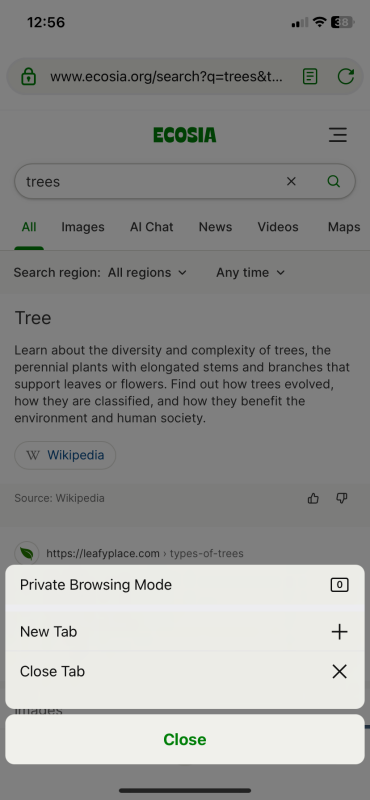
Accessing incognito mode on iOS is straightforward. Start by tapping the tabs icon in the bottom toolbar, then select the "Private" option or the inspector symbol to enter incognito mode.
Another method is to press and hold the tabs button, which will display options to open a new tab, switch to private browsing, or close existing tabs.
How to browse privately on Android
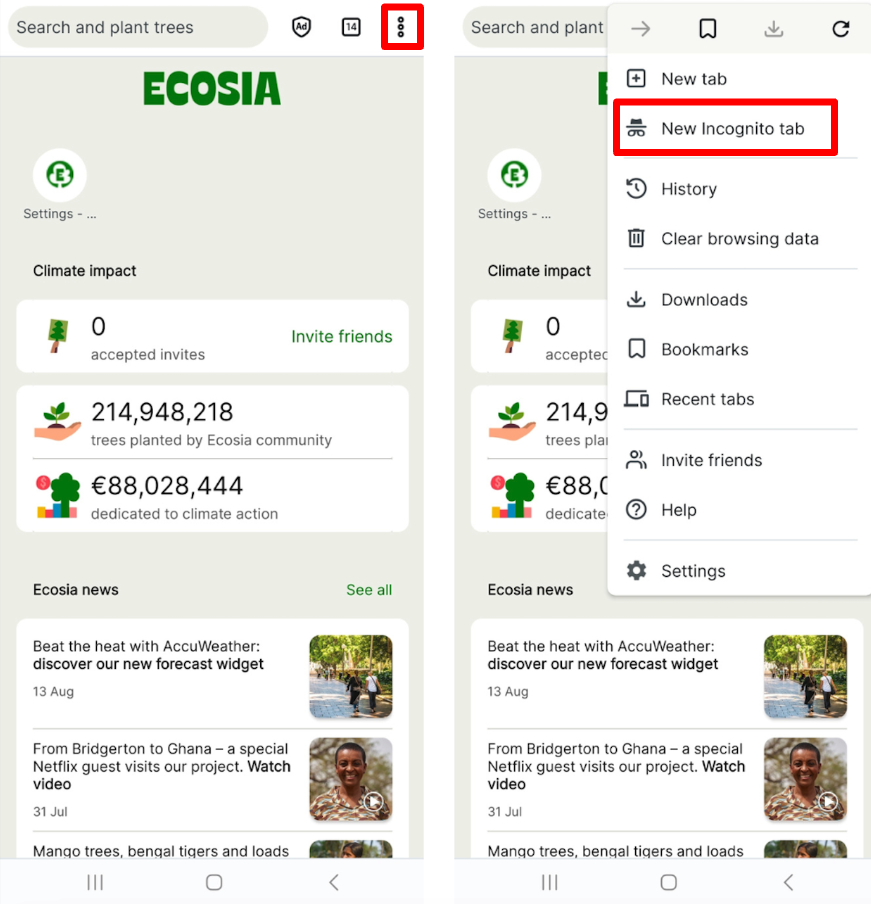
- Open the Ecosia Browser app
- Open the menu and select “New Incognito tab”
- A new private tab will open
- Browse as usual
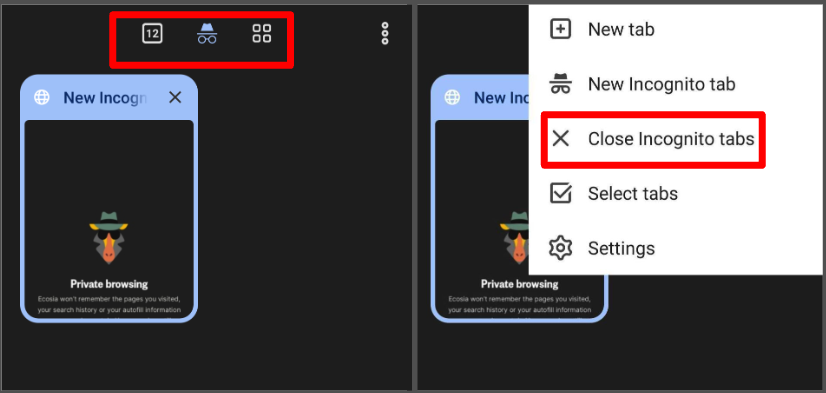
- Close all Incognito tabs to exit the session
You can navigate between regular tabs, incognito tabs and tab groups on android.
To exit the incognito mode, close open tabs in incognito mode or open the menu (three dots on the right corner) > close all incognito tabs.